Overview
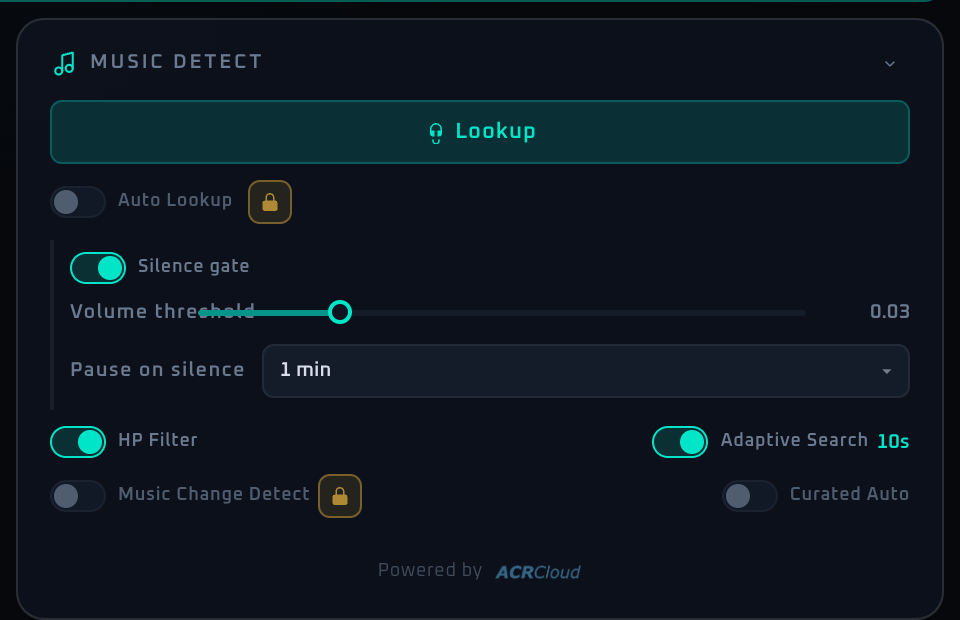
The Song Detect panel is the core area that wires song recognition into AUTOVJCLUB and forwards the result to the MV layer, lyrics engine, and genre-driven source switching. Turn recognition on and it repeatedly sends short microphone samples for identification; on a hit, the title, artist, and genre information become available to the rest of the app. Demo can use song recognition too, but the total number of recognitions is capped at 50. Beyond that cap, either upgrade to Event Pass or buy a one-shot demo reset (¥500) to restore the counter.
The recognition pace is automatic, with nothing to configure. The default fast recognition follows a track change within seconds. Enabling genre auto-switch makes the curated source group switch automatically based on the recognized genre.
Control Reference
- Mic-not-active notice
When the Audio panel's REC is off, the entire panel dims and shows a notice asking to turn REC on. Controls do not respond until the mic is live.
- Status area
The 🤖 line at the top of the panel says what recognition is doing right now — idle, listening, or backing off while the upstream service is busy. When hits are not landing, look here first.
- Song recognition toggle
The main control: it turns recognition on and off. An LED and an ON / OFF label make the state obvious at a glance. While it is on, recognition repeats automatically, so you can leave it running. Demo can use it, but once the 50-recognition cap is reached a lock icon appears and the toggle is disabled.
- Recognition result card
Shows artwork, title, and artist for the matched song. When nothing is matched, the status area says so.
- Silence gate (always on, nothing to set)
When no music is playing, recognition is skipped. It decides this by watching whether the auto-leveler has to push gain to its maximum and still can't reach the target level — i.e. "a room with no music" — so it isn't fooled by device sensitivity differences and won't cut off real music. If silence continues for about 5 minutes, the mic is turned off automatically and the status area shows "Mic turned off after prolonged silence." To resume, just toggle REC back on in the
Audiopanel.- Genre Auto Switch
Sends the recognized genre to the Source panel for automatic curated playlist switching. Available in Demo as well.
- Recognition engine credit (footer)
Shows which recognition engine is currently running. The default reads "Powered by Shazam". If you have switched to ACRCloud in the Settings panel, it becomes the Powered by ACRCloud logo; clicking it opens a confirmation dialog and then acrcloud.com in a new tab.
- Collapse arrow
Minimizes the panel.
When To Use It
Before a set, switch recognition on and confirm it lands consistently across a few tracks — that alone removes most in-show automation trouble. Use the 50 free Demo recognitions to find the best mic position; that is enough for home practice and short verification, while live venue use should rely on Event Pass. Both input gain and the recognition pace are automatic, so there is nothing to tune. If hits are still inconsistent, revisit the mic placement (distance and angle to the sound source) — that is what makes the biggest difference.
For a venue where hit rate stays poor, the Settings panel lets you switch the recognition engine to the high-confidence option, ACRCloud (Pro only). It exists as the engine to move to when support suggests it, so the default is the right choice the rest of the time.
If a workflow is unclear or missing, let us know through the contact form.
Automation-oriented features such as auto lookup and auto rotation unlock with Event Pass.