Overview
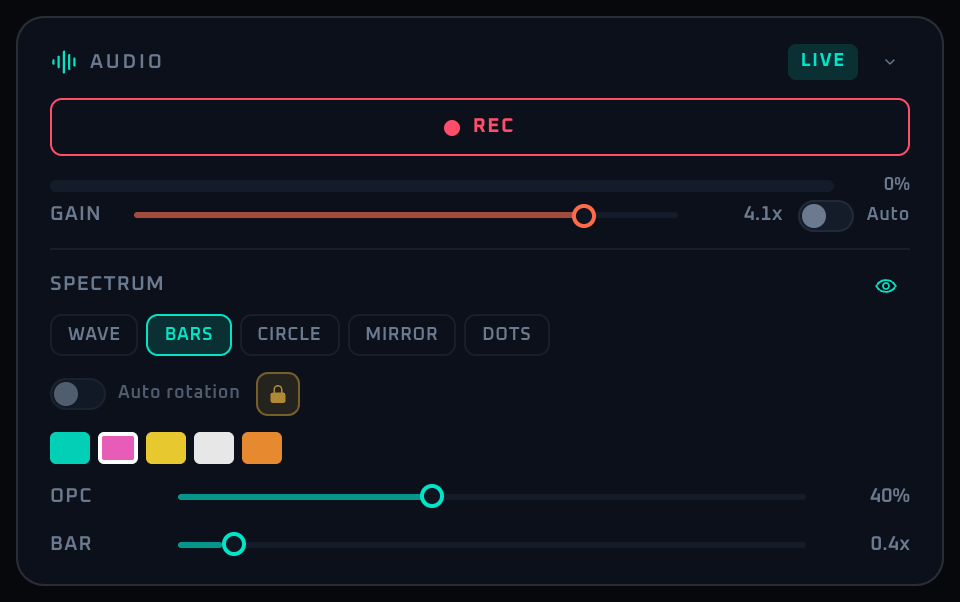
The Audio panel is where AUTOVJCLUB starts listening to the room. It enables the microphone (HTTPS required, with localhost as the only exception), automatically optimizes the input level, and toggles the spectrum visualization. Because song recognition and audio-driven modulation both depend on this input, this is one of the most important panels: if the audio side is unstable, everything downstream wobbles too.
Input gain is fully automatic. The signal after the mic is continuously driven to an optimal level and handed to song recognition, so there is nothing for you to tune (the same idea as the Shazam app, which has no mic-sensitivity setting). Shazam recognition is nearly invariant to input level — the only real weakness is clipping from too-hot input — so the auto-leveler prioritizes avoiding clipping, then holds the level steady once it settles, and absorbs sensitivity differences between devices (line-in vs. built-in mic) on its own. The spectrum visualization is useful as a decorative layer, but leaving it always on tends to feel over-busy, so showing and hiding it per genre is often more practical. The spectrum auto rotation is available in Demo as well.
Control Reference
- LIVE badge (top right, when mic is active)
A subtle indicator that the mic stream is active and feeding the rest of the app.
- REC button (main view only)
Starts or stops microphone capture. On error the button flashes red and an error message appears below. The Control panel view replaces this with a passive notice instead, since the mic is operated from the main screen.
- Microphone error message (when an error occurs)
Localized message for permission denied, no device, or non-HTTPS origin.
- Audio level meter
Vertical bar showing real-time input level. Because gain is auto-managed, it normally sits in the healthy green-to-yellow range. A near-flat bar is a sign the mic isn't picking up sound (position, connection, or permission).
- Input gain (fully automatic, nothing to set)
The level after the mic is managed by a stable auto-leveler: it eases toward a target level and holds steady once settled, and instantly drops gain only when the input is about to clip, preventing distortion. Because Shazam recognition is nearly invariant to input level, there is no gain for you to tune. If the mic sounds too quiet or too loud, check the physical mic placement or connection rather than a gain control.
- SPECTRUM visibility toggle (eye icon)
Shows or hides the spectrum visualization layer. When off, the SPECTRUM controls below are dimmed.
- Mode buttons (wave / bars / mirror / dots / circle, etc.)
Switches the visualizer drawing mode. Mode-specific thickness sliders appear below.
- Auto rotation switch + interval slider
Rotates the spectrum mode over time. Interval 5–60 seconds in 1-second steps. Available in Demo as well.
- Color palette (5 swatches)
Pick the spectrum color from Cyan, Magenta, Yellow, White, or Orange. Active swatch has a white border.
- OPC slider (opacity 0–100%)
Overall opacity of the spectrum layer. Used to balance against the background video.
- LINE slider (wave / circle modes, 1–10 px)
Stroke width for waveform-style modes.
- BAR slider (bars / mirror modes, 0.2–3×)
Bar width multiplier.
- DOT slider (dots mode, 1–10×)
Dot size multiplier.
- Collapse arrow
Minimizes the panel.
When To Use It
Before going live, it's enough to confirm the level meter is responding (i.e. the mic is picking up sound). Input level optimization is automatic, so there's no gain to set by hand. When band changeovers or DJ swaps shift the level balance, the auto-leveler follows within a few seconds. If the microphone refuses to start, the most common causes are missing browser permission and a non-HTTPS origin.
Note: while "FPS Auto-Optimization" in Settings is enabled (on by default), the spectrum display is turned off automatically when the frame rate drops sharply — a notice appears on screen. If it switches off unexpectedly, reduce the load on the machine or disable the feature in Settings.
If a workflow is unclear or missing, let us know through the contact form.
Automation-oriented features such as auto lookup and auto rotation unlock with Event Pass.