Overview
The Shader panel applies a deeper effect layer than Filters. Distortion, noise, geometric warping, and color shifting are all available, which lets you create textures that simple filter parameters cannot reach. The trade-off is that an over-strong shader quickly destroys the source character and lyric readability, so the strength must be managed through Blend and Opacity rather than just enabling the effect.
A reliable workflow is to set the base look with Source and Filters first, then add Shader as a final layer. Going the other way around forces every later adjustment to fight against the shader, which is tiring. Auto Rotate is useful for long sessions where the look should evolve over time and is available in Demo as well. A practical path is to pick two or three favorite shaders manually first, then switch to Auto so the rotation never lands on something that breaks the room.
Control Reference
- Mode selector (None / Manual / Auto)
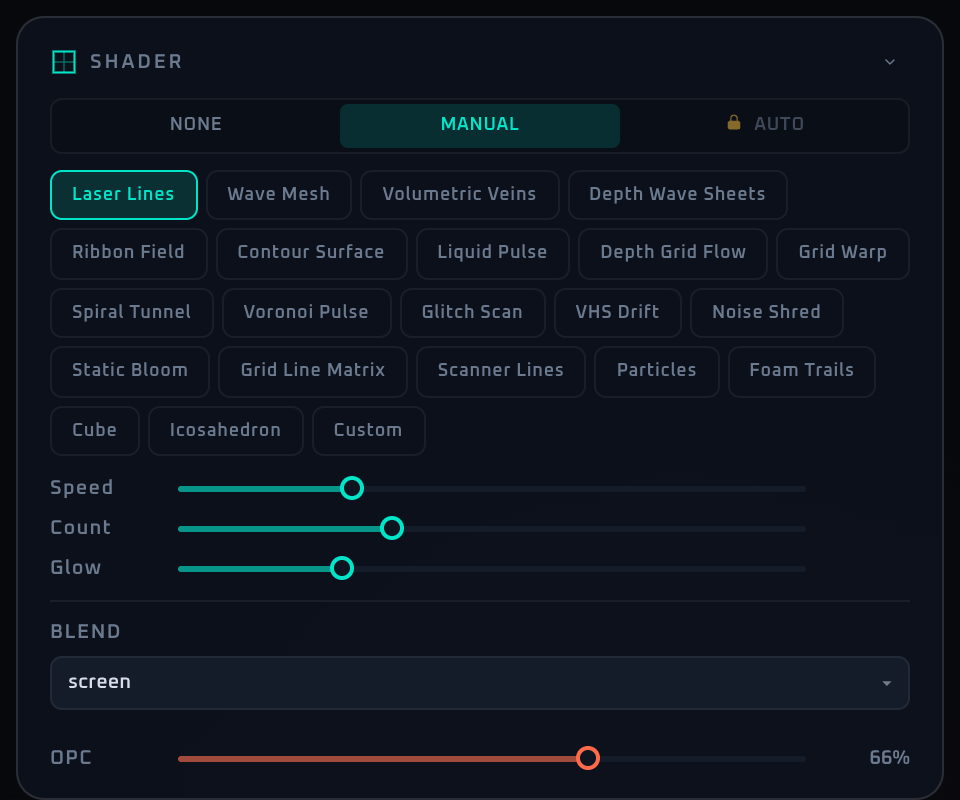
Nonedisables the shader layer entirely.Manualexposes preset buttons and per-parameter sliders for hand operation.Autorotates shaders over time. Available in Demo as well.
- Preset buttons (Manual mode, one per shader plugin)
Apply a registered GLSL shader with one click. The active plugin is highlighted with a green border and tinted background. Each plugin defines its own parameters, which appear as sliders below.
- Custom button (Manual mode)
Switches to a custom GLSL editor. A textarea appears below for pasting a fragment shader; press Apply to compile. Compile errors are shown in red.
- Plugin parameter sliders (Manual mode, depends on the active plugin)
Each plugin defines its parameters with min / max / step bounds. The set and meaning vary by shader.
- Blend mode selector (visible outside None mode)
Selects how the shader output is composited onto the base image. Standard blend modes such as screen, multiply, overlay, and add are available.
- OPC slider (opacity, visible outside None mode, warm variant, 0–100%)
Overall strength of the shader. 0% disables the effect, 100% fully replaces the base.
- Rotate slider (Auto mode only, 5–120 s, 1 s step)
Time interval for switching shaders in Auto mode.
- Custom source textarea (Manual mode + Custom enabled)
Paste a GLSL fragment shader source. The Apply button passes it to
loadPluginFromSource()for compilation.- Apply button (Custom view)
Loads the textarea content as a shader plugin. On failure, errors appear in red below.
- Compile error display
Shows GLSL syntax or link errors in red monospace text, preserving line breaks for readability.
- Collapse arrow
Minimizes the panel.
When To Use It
A general rule is: stronger Shader when the source material is calm, weaker Shader when the source is already busy. Starting around Opacity 0.3 and pushing to 0.5 to 0.7 during peaks tends to stay safe. When lyrics or Now Playing must be highly readable for a section, drop Opacity by one notch first to keep the text layer visible.
Note: while "FPS Auto-Optimization" in Settings is enabled (on by default), the shader is paused automatically when the frame rate drops sharply — a notice appears on screen. If it stops unexpectedly, reduce the load on the machine or disable the feature in Settings.
If a workflow is unclear or missing, let us know through the contact form.
Automation-oriented features such as auto lookup and auto rotation unlock with Event Pass.