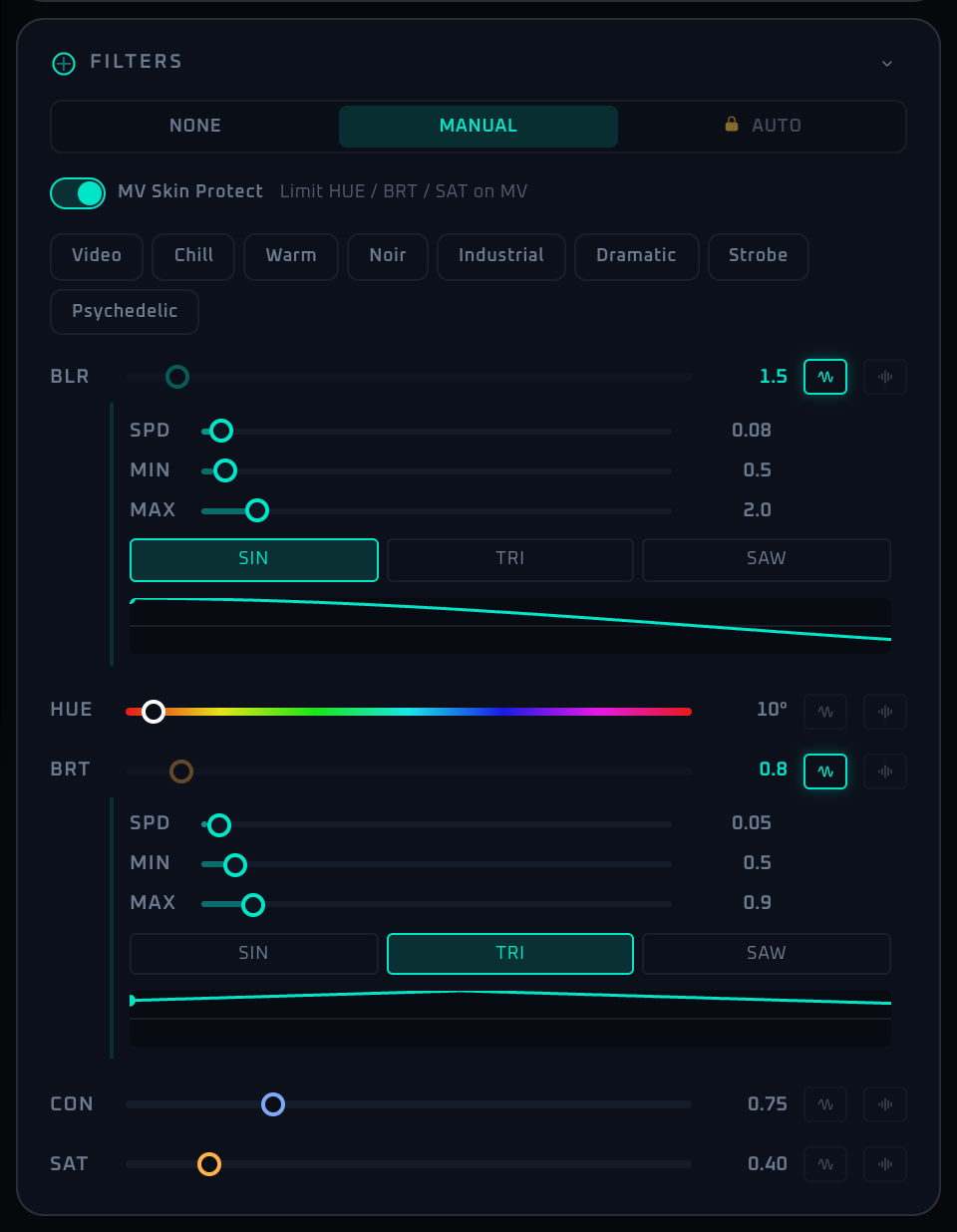
Overview
The Filters panel is where raw source footage becomes a designed visual look. It controls Blur, Hue, Brightness, Contrast, and Saturate, but the important part is that AUTOVJCLUB treats the manual value, LFO modulation, and audio modulation as separate layers. That means you are not just setting a static number. You are building a base state and then deciding which parameters should breathe, pulse, or react to music over time.
In practice, the most stable workflow is to start in Manual mode and create a clean baseline first. After that, add modulation only to the parameters that need movement. Driving everything at once is flashy, but it becomes tiring quickly and can reduce readability for lyrics, logos, or MV overlays. Auto rotation swaps full filter presets over time and is available in Demo as well. MV Skin Protect is also important in real rooms, because it softens how HUE / BRT / SAT affect the MV layer and keeps people or anime footage from breaking too aggressively.
Control Reference
- Mode selector (None / Manual / Auto)
Selects the operating mode for the whole panel.
Noneresets all base values and disables every modulation, returning to a clean source.Manualshows preset chips and per-parameter sliders for hand tuning.Autorotates filter presets according to the recognized genre and is available in Demo as well.
- MV Skin Protect toggle (visible outside None mode)
When enabled, HUE / BRT / SAT are dampened on the MV layer to keep skin tones and anime faces clean. Recommended to leave on whenever MV overlay is part of the show.
- Preset chips (Manual mode only)
Apply a multi-parameter look in one click. Options include Video, Chill, Warm, Noir, Industrial, Dramatic, Strobe, and Psychedelic, which are useful as starting points before fine adjustment.
- Parameter sliders (BLR / HUE / BRT / CON / SAT, Manual mode)
Edit the base value directly. Ranges are BLR 0–20, HUE 0–360°, BRT 0–10, CON 0–3, SAT 0–3. When LFO or Audio modulation is enabled for that parameter, the slider becomes a read-only readout of the resulting effective value and stops accepting drag input.
- LFO toggle (per parameter, waveform icon)
Enables low-frequency oscillator modulation for the parameter. Turning it on reveals SPD / MIN / MAX sliders and a waveform selector (Sin, Tri, Saw) along with a live preview. SPD controls cycle speed, MIN / MAX bound the swing, and the waveform shapes the curve.
- Audio toggle (per parameter, spectrum icon)
Drives modulation from the live audio input. Once on, choose a Band (low / mid / high) and a SENS sensitivity (0–2). Common patterns are bass-driven blur and treble-driven brightness pulses.
- Auto-mode controls (Auto mode)
- The
Genre-linkedlabel indicates that recognized genres are mapped to preset profiles. - The
Rotateslider sets the rotation interval from 5 to 120 seconds in 5-second steps.
- The
When To Use It
Use Filters when the source material is close but not yet at the right intensity. A small Brightness or Saturate change can lift a dull room fast. Audio modulation works well for Contrast or Brightness when you want kick-driven motion without making the screen unreadable. During lyric or MV-heavy moments, reduce the amount of simultaneous movement and confirm that MV Skin Protect is doing what you expect.
Note: while "FPS Auto-Optimization" in Settings is enabled (on by default), filter rendering is paused automatically when the frame rate drops sharply — a notice appears on screen. If it stops unexpectedly, reduce the load on the machine or disable the feature in Settings.
If a workflow is unclear or missing, let us know through the contact form.
Automation-oriented features such as auto lookup and auto rotation unlock with Event Pass.