Overview
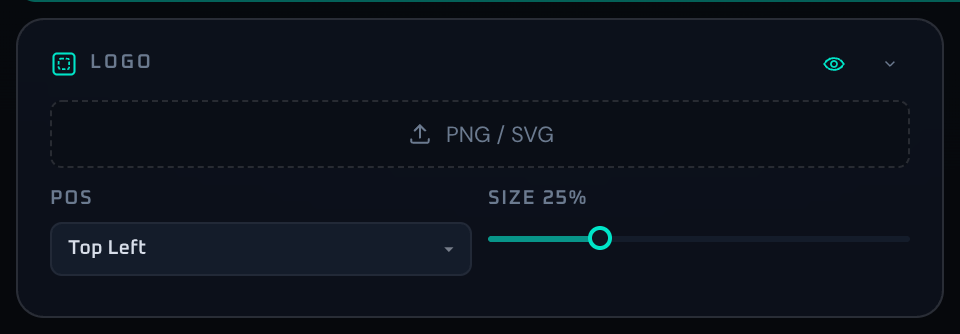
The Overlay panel is responsible for the venue logo, event mark, or any small branding graphic that sits above the main visual layer. Logos are loaded as PNG or SVG, placed with a 9-position picker, and sized as a percentage of the output. A common pattern is to keep a small permanent venue logo running, and only enlarge an event logo for a few peak moments such as set start, performer changes, or social shoutouts.
Because the logo is almost always on screen, oversizing it competes with lyric, DJ name, and Now Playing overlays and reduces overall readability. The size that looks good in isolation is rarely the size that coexists well with other overlays, so before going live it is worth toggling all overlays on at once and reviewing the result in fullscreen. Decide the position first, then refine size; that order tends to keep the layout clean.
Control Reference
- Visibility toggle (top right, eye icon)
Shows or hides the logo overlay. A crossed eye means hidden. Position, size, and the loaded image are preserved, so this is convenient for short-term hiding during transitions.
- PNG / SVG upload button
Picks a local PNG or SVG file. Other formats are silently ignored. The image is stored as a data URL and survives reloads.
- Remove button (visible when a logo is loaded)
Clears the current logo image. Other settings remain intact, and the overlay is hidden until a new image is supplied.
- Position selector (9 anchors)
Anchors the logo to one of nine on-screen positions: Top-Left, Top, Top-Right, Left, Center, Right, Bottom-Left, Bottom, or Bottom-Right. Placement is offset from the edges regardless of aspect ratio.
- Size slider (0–100%)
Sets the logo size relative to the output width in 1% steps. 0% collapses it completely, 100% is maximum. For permanent branding, 10–20% is usually comfortable; for peak announcement bursts, 30–50% reads well.
- Logo preview (visible when an image is loaded)
Shows the current logo at small scale inside the panel. Useful for confirming an upload or comparing replacements.
- Collapse arrow
Minimizes the panel. The state is persisted in localStorage.
When To Use It
For permanent venue use, keep the logo modest and stable, and only push the size up briefly for announcements (set start, performer change, social call-to-action). For high-motion genres such as trance or psychedelic where a small logo can sink into the visuals, fix the position first and only increase size if visibility is still not enough; that order avoids breaking the rest of the layout.
If a workflow is unclear or missing, let us know through the contact form.
Automation-oriented features such as auto lookup and auto rotation unlock with Event Pass.