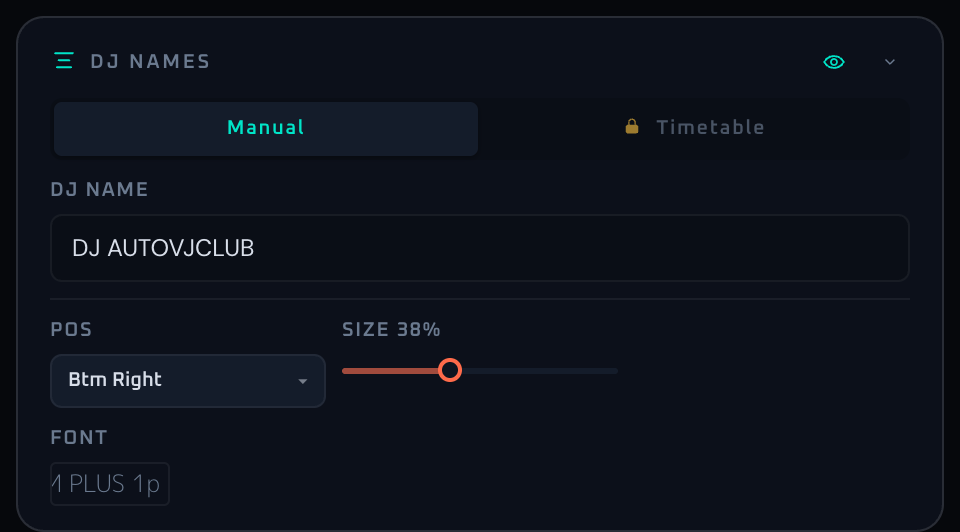
Overview
The DJ Names panel handles the performer name overlay shown on the visual output. For single-DJ events, manual entry is enough; for nights with multiple performers, the timetable feature automatically switches the visible name based on the scheduled set times. Position, size, and font are tunable independently so the same UI can serve both a permanent venue look and an event-style large announcement.
Timetable automation is unlocked with Pro Event Pass. Once a list of start times and DJ names is registered, the displayed name switches automatically at each set boundary. Demo allows manual entry only, but rewriting the name by hand during a live set is fragile, so for lineups of five performers or more, Pro is strongly recommended. Fonts can be searched from Google Fonts, and a heavier sans-serif tends to read better under pin-spot lighting.
Control Reference
- Visibility toggle (top right, eye icon)
Shows or hides the entire DJ name overlay. Stored values (current name, timetable, font) are preserved.
- Mode tabs (Manual / Timetable)
Manual: a single text field for the current DJ name. The simple default mode.Timetable: register a list of start times and DJ names that switch automatically. Pro-only; a lock icon means Pro is not active and clicking opens the upgrade flow.
- DJ name input (Manual mode)
The visible performer name. Empty string hides the overlay. The value is persisted in localStorage and restored on next visit.
- Start time input (Timetable mode)Pro Event Pass
An HH:MM time picker that becomes the start time of the next entry to be added.
- DJ name input (Timetable mode)Pro Event Pass
The performer name for the next entry. Pressing Enter is equivalent to clicking Add Entry.
- Add Entry buttonPro Event Pass
Registers the current time and name as a new timetable entry. Missing time or name shows a red validation message.
- Bulk Import button (down-arrow icon)Pro Event Pass
Opens a modal for pasting many entries at once.
- Text area: accepts tab, comma, semicolon, or space separated input.
- Delimiter row:
Auto,Tab,,,;, orSpace.Autodetects from the content. - Preview list: shows parsed
start – end – namerows with a total count. - Import / Cancel buttons.
- Timetable list (Timetable mode, after entries exist)Pro Event Pass
Each row supports inline editing and removal:
- Start time label (read-only display).
- End time input (auto-filled from the next entry's start; can be overridden).
- DJ name inline edit.
- Font popover for per-entry font override.
- Remove button (× icon).
- Position selector (9 anchors)
Anchors the overlay to one of nine on-screen positions.
- Size slider (0–100%)
Sets the relative size of the name overlay. Uses the warm (orange) slider variant.
- Default font popover
Selects the global default font from Google Fonts. The list shows live font previews using "Aa" or the current name. Per-entry font in the timetable wins over this default.
- Collapse arrow
Minimizes the panel.
When To Use It
For nights where every transition has to land cleanly, the timetable is more reliable than manual rewriting. Once the lineup is registered, you do not have to touch the panel during the show. If you stay with manual entry, keep the laptop reachable for quick edits, and once size and position are set, leave them alone during the set. Thin fonts collapse at distance, so a heavier gothic-style font is a safer default for long sessions.
If a workflow is unclear or missing, let us know through the contact form.
Automation-oriented features such as auto lookup and auto rotation unlock with Event Pass.