Overview
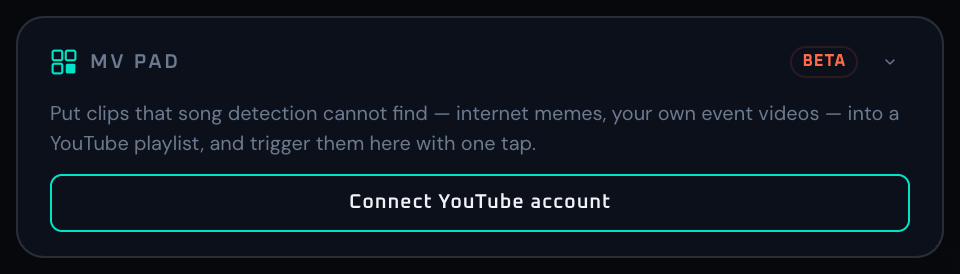
MV Pad lays out YouTube search results as a grid of thumbnails, and puts whichever one you tap straight onto the video layer. It is currently in beta.
Where the MV panel automatically hunts down the music video for whatever is playing, MV Pad is for the clips you choose yourself: internet memes, an event opening sequence, a countdown or a toast video — anything that is not a track and will never be recognised as one.
A clip you tap stays on screen until you release it. Track changes will not replace it, and when it reaches the end it loops back to the start, so a short meme clip can simply keep running.
Getting started
1. Search by keyword
Type a keyword into the search box (for example a song title plus "MV", or the name of a meme) and press Search. The results appear as pads. No account connection is needed.
You can search from the remote screen too.
2. Tap a pad
Tap a pad to put that clip on screen. Your last search results are saved on the device, so the pads are still there the next time you open the app.
Controls
Search box
Searches YouTube by keyword. Searching again replaces the pads with the new results.
Pads (thumbnail grid)
Tap to put that clip on the video layer. The active pad lights up and shows an ON AIR badge. Tap the same pad again to release it.
Release MV Pad
Takes the current clip down and returns to normal. If auto-detect is ON in the MV panel, the music video for the current track comes back.
Clips that cannot play (greyed out)
Clips whose uploader does not allow embedded playback cannot be played. Once a clip fails to play it is greyed out and can no longer be tapped. This is a YouTube-side setting, so there is no way around it — try different keywords to find another upload.
Collapse arrow
Minimises the panel.
In the field
Use it whenever you want visuals that are not a track: the gap before the DJ takes the mic, the cue for a toast, an opening sequence with the event name on it. The same pads appear on the remote screen, so the usual move is to tap them from a device in your hand on the floor.
While a clip is showing, song detection stops swapping the MV, which also makes it handy for locking the visuals at a key moment. When you are done, press Release MV Pad to go straight back to the normal flow.
If you already know which clips you will use, search for them before the show so you start with the pads ready.
If a workflow is unclear or missing, let us know through the contact form.
Automation-oriented features such as auto lookup and auto rotation unlock with Event Pass.